


Setting up a network printer might sound as thrilling as watching paint dry, but it doesn’t have to be a snooze-fest. Imagine being able to print from anywhere in your home or office without the hassle of tangled cables and awkward positioning. With the right setup, that dream can become a reality.
Understanding Network Printers
Network printers connect to a network, allowing multiple devices to print without direct cabling. These devices include computers, tablets, and smartphones. Different types provide varying functionalities, including multifunction printers that also scan and copy.
Wireless models utilize Wi-Fi, enabling accessible printing from any location within range. Ethernet-connected printers also offer stability by plugging directly into a router. Many network printers support various operating systems, ensuring compatibility with Windows, macOS, and Linux systems.
Security features protect sensitive information during printing. Encryption protocols ensure that data remains confidential, especially in shared network environments. Access controls can restrict use to authorized users, enhancing privacy.
Configuration often involves connecting the printer to the network hardware. Users typically employ a web interface or a dedicated app for setup. Initial steps require identifying the printer’s IP address, which facilitates device communication.
Troubleshooting may be necessary when connectivity issues arise. Common problems include IP conflicts or network interference. Regular software updates can improve printer performance and security.
Popular brands offer network printers designed to meet diverse needs. HP, Canon, and Brother provide a range of features to cater to both home and office environments. User reviews frequently highlight ease of setup and reliability, guiding potential buyers in their choices.
Selecting the right network printer involves assessing specific requirements. Consideration should include print volume, speed, and additional functionalities. Budget also plays a critical role in the decision-making process.
Preparing for Network Printer Setup
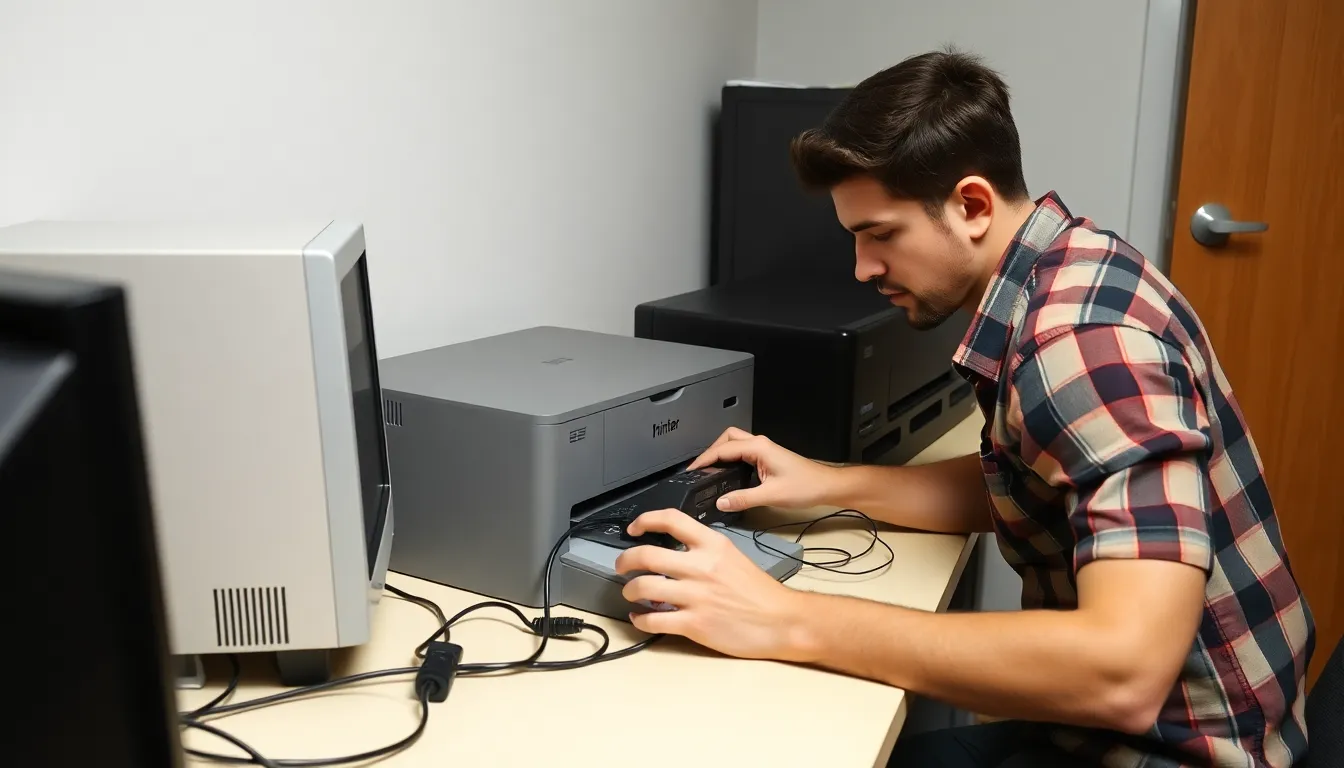
Preparation simplifies the network printer setup process. Following key steps ensures a smooth installation.
Checking Compatibility
Verifying compatibility ensures seamless connectivity between the printer and devices. First, check that the network printer supports the operating system of computers or mobile devices. Review the printer’s specifications to confirm that it can connect via Wi-Fi, Ethernet, or both. Determine whether additional drivers or software are necessary for optimal performance. Ensuring routers and network configurations meet the printer’s requirements remains essential. Verify that other devices on the network support the printer’s features. Examining all aspects of compatibility reduces future connectivity issues.
Gathering Necessary Equipment
Certain equipment enhances the setup process. Acquire a network printer, ensuring it includes all necessary components such as power cords and installation manuals. Obtain an Ethernet cable for wired connections, providing stability if needed. A Wi-Fi network with strong signals proves beneficial for wireless setups. Identifying available devices for printing, such as computers, tablets, and smartphones, ensures they are ready to connect. Make certain that the router is compatible and that firewall settings allow printer access. Being well-prepared with the right equipment facilitates a smoother installation experience.
Steps for Network Printer Setup
Network printer setup involves connecting the printer to a network and configuring its settings for optimal performance. Following the proper steps ensures seamless operation across devices.
Connecting to the Network
Establishing a connection to the network starts with choosing the type of connection, either wired or wireless. For wired connections, plug the Ethernet cable into the printer and connect the other end to the router. Wireless connections require locating the printer’s Wi-Fi settings, inputting the network name, and entering the Wi-Fi password. Printing over Wi-Fi is convenient and eliminates cable clutter. Once connected, confirm the printer’s network status, ensuring it has acquired an IP address. Doing this guarantees the printer can communicate with other devices on the network.
Configuring Printer Settings
Configuring printer settings involves accessing the printer’s onboard menu or web interface. First, select the desired print quality and paper size. Adjust settings for color or black-and-white printing as needed. Assigning the printer a static IP address enhances reliability within the network, reducing potential connectivity issues. Enabling security features, such as password protection and encryption protocols, safeguards printed documents. After adjusting settings, print a test page to verify that connections and settings function correctly. Test printing serves as a practical way to ensure the printer is ready for everyday use.
Troubleshooting Common Issues
Network printers occasionally face challenges during operation. Addressing these issues promptly ensures seamless printing experiences across devices.
Connectivity Problems
Connectivity issues often stem from network disruptions. Check Wi-Fi signals and confirm the printer is within range. Additionally, verifying IP address assignments can resolve conflicts. If a printer connects via Ethernet, inspecting cable connections and router functionality is vital. Restarting both the printer and router can reinvigorate network connections. Enabling printer and device firewalls should only occur if specific settings permit communication. Networks may also experience interference from other devices. Reducing the number of connected devices often improves performance.
Print Quality Issues
Print quality issues can arise from various factors. Common problems include streaks, smudges, or faded prints. First, examine ink or toner levels. Replacing low cartridges often remedies print quality degradation. Running printer alignment or cleaning cycles can also clear blockages in print heads. Settings related to print quality, like resolution and paper type, should align with specific requirements. Utilizing paper compatible with the printer type impacts overall performance. If the issue persists, consult the manufacturer’s troubleshooting guides or contact support for assistance. Regular maintenance can prevent many quality-related problems.
Setting up a network printer opens the door to a more efficient and flexible printing experience. With the ability to print from various devices without the hassle of cords it enhances productivity in both home and office environments.
By following the outlined steps and preparing adequately users can avoid common pitfalls and ensure a smooth installation process. Regular maintenance and troubleshooting tips will keep the printer operating at its best.
Choosing the right network printer tailored to specific needs will ultimately lead to a satisfying printing experience. Embracing this technology not only simplifies tasks but also brings convenience to everyday printing.

